![White logo TopLeft_240x78.png]](https://help.topleft.team/hs-fs/hubfs/White%20logo%20TopLeft_240x78.png?height=50&name=White%20logo%20TopLeft_240x78.png)
Capacity Planning is about balancing two things: availability of engineer resources and project demand. This article explains how to specify the availability of engineers.
Engineer availability is specified in hours/week.
Overhead and Multiple Teams
In many MSPs, engineers work on multiple types of work, not just project work on a single team. An engineer may perform both project and reactive service work or may work on more than one project team.
Furthermore, engineers don't work on projects every moment of their work day. They need time to perform various administrative, training, and other overhead functions.
TopLeft handles this by tracking availability in hours per engineer, per week, per team.
You can specify an engineer is available for X hours in a given week for a given team and Y hours for a different team. The X and Y hours should take overhead time into consideration.
Availability is typically tracked for planned work such as projects, not reactive work such as helpdesk support.
For example, you could define availability for an engineer as follows:
25 hours - project work
10 hours - service work
5 hours - overhead
40 hours - total for week
In this case, you would set the engineer's normal weekly project team availability to 20 hours. The 10 hours for service and 5 hours for overhead are not tracked in TopLeft.
Company Default Availability
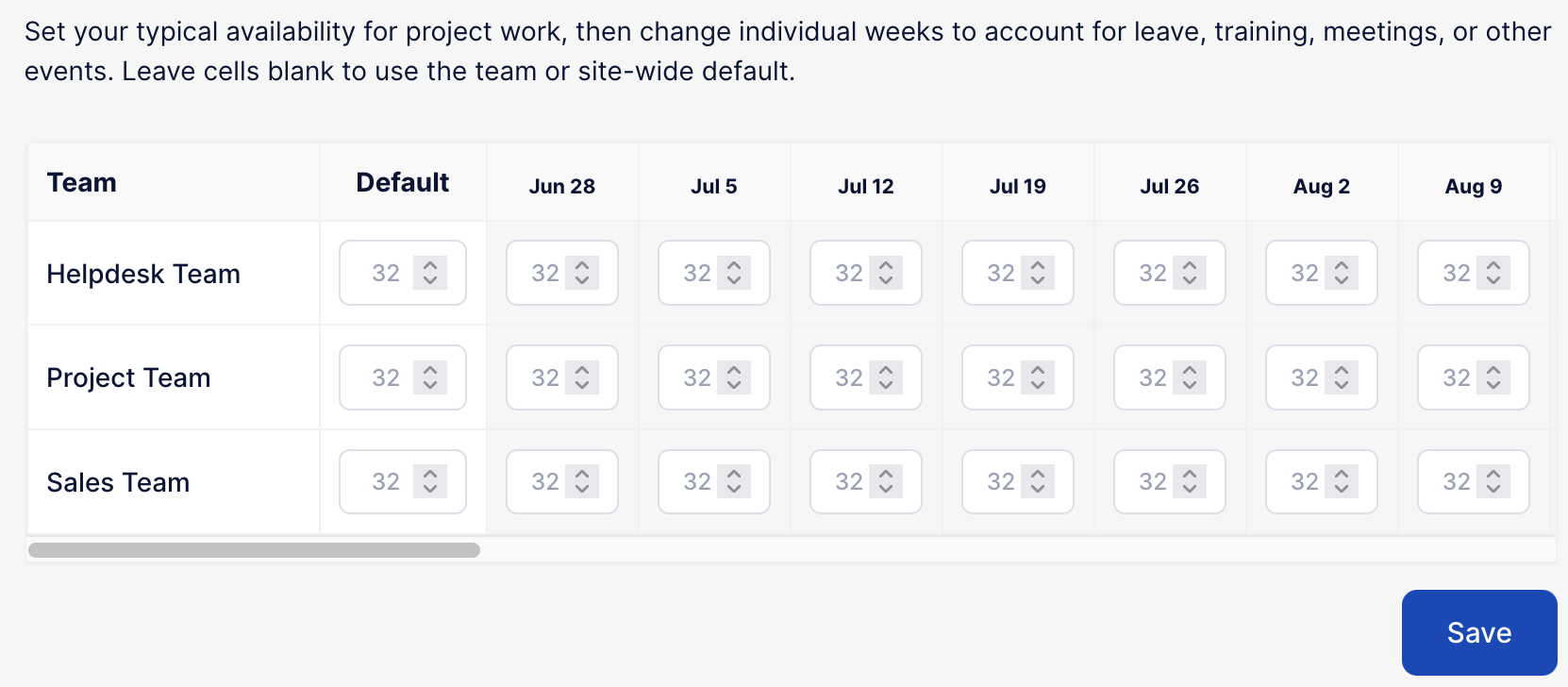
You can set a default availability for all engineers and all teams in TopLeft. This can be overridden by week, by team, and by individual member.
Navigate to Settings > Capacity Planning to change this value. The initial value is 32 hours/week.
Team and Member Availability
To set a default availability for members on a team, use the Team editor.
Navigate to Settings > Teams > select the team > Capacity tab.
Set the "member project availability" field.
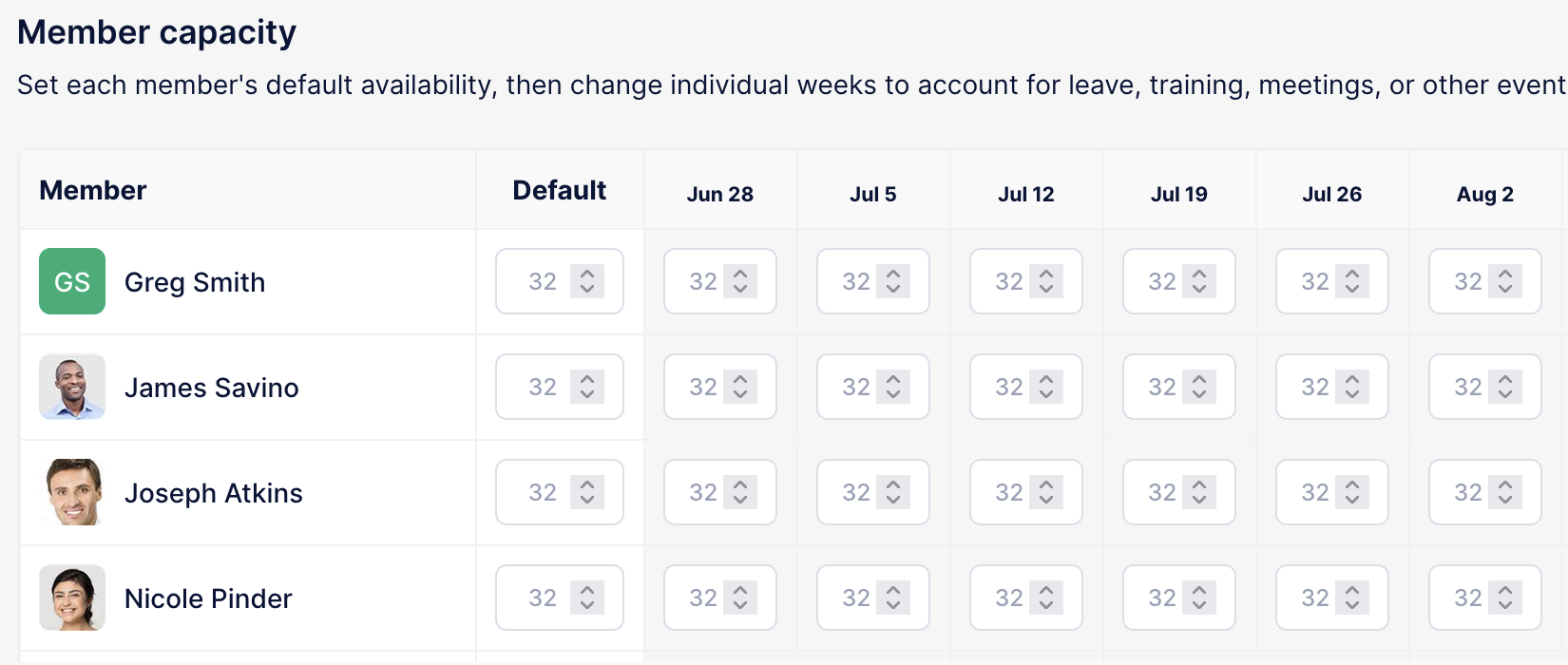
You can set the availability for individual members of the team, for individual weeks, for 26 weeks starting at the current week.
Members Control of Availability
Members can set their own availability for project work on their teams. This lets them take into account their own out-of-office or otherwise unavailable time.
The member should navigate to their Account page, then click Set Project Availability, then update the hours for the appropriate team and week.