![White logo TopLeft_240x78.png]](https://help.topleft.team/hs-fs/hubfs/White%20logo%20TopLeft_240x78.png?height=50&name=White%20logo%20TopLeft_240x78.png)
Capacity Planning normally works at the project level. Projects are considered as a whole, with budget hours assigned evenly between associated members and over the whole duration of the project.
This isn't always realistic. Some projects have pauses or have more work at the beginning or at the end, and some have different people working on different phases.
To handle projects like these, Capacity Planning can plan at the phase level, not just the project level. This allows you to represent a more detailed project plan that accounts for projects that have more intense work at the beginning or at the end, or have different people working on different parts of the project.
How to Plan By Phase
In the Capacity Planner toolbar, click Projects, then click Phases.
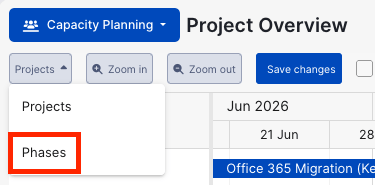
Yeah, that's all you do.
The display will change from showing projects to showing the phases within those projects.
Considerations
It's easy to change to phase planning but there are some considerations you should be aware of:
- Phases can have budget and time assignments overridden, just like projects.
- There will be many more phases in your planner than projects. When you first begin planning by phase, you may need to temporarily change the filtering options on the View to maintain a manageable list of phases, then when you're done, restore the filtering option to see the resulting complete plan.
- Phases don't inherit configuration from projects. For example, if you override a project budget, it doesn't change anything for its phases.
- Phases don't have start and end dates stored in the PSA like projects have, so the initial phase scheduling may require more work than initially scheduling projects.
- For ConnectWise users only- if you perform project scheduling using a project role grouping, you may not want to use that grouping for phase scheduling. Instead, consider using the Ticket Assigned grouping, which associates members with phases if they are assigned to any ticket in a phase.