![White logo TopLeft_240x78.png]](https://help.topleft.team/hs-fs/hubfs/White%20logo%20TopLeft_240x78.png?height=50&name=White%20logo%20TopLeft_240x78.png)
Capacity Planning is about balancing two things: availability of engineer resources and project demand. This article explains how to schedule projects within your engineering capacity.
Calculation of Weekly Project Demand
In Capacity Planning, every project is considered to demand a certain number of hours per week. This number is determined by taking the total project budget and dividing it by the number of weeks of duration, which is calculated from the start and end dates of the project.
The budget hours of the project are considered to be demanded uniformly from the beginning to the end of the project.
If this is not realistic for your case- for example, projects pause in the middle or most of the project work occurs at the beginning or end of the project- then consider planning by phase, not project.
Project/Member Association
When planning project work, it's critical to know which members of your team will do the work on the project, so that problems with capacity can be accurately indicated.
To set the association, update the grouping field of the View, either in the View itself or by overriding the grouping in your personal view of the data.

If your project has stages where different people work on the project at different times, you may want to do capacity planning by phase.
When a project is associated with a member, it will appear in the member's row in the top section of the planner.
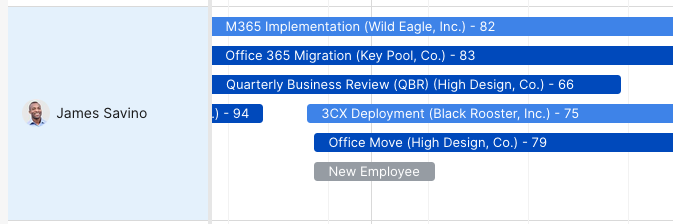
TopLeft has a variety of ways to associate projects with members.
Project Manager/Lead Resource/Agent
In this mode, only one person, the manager/lead/agent, is associated with a project. All the budget hours of the project are assigned to this person.
Ticket/task assigned
In this mode, a person is associated with a project when they are assigned to at least one ticket/task in the project.
Multiple people can be associated with a project. The budget time of the project is distributed among these members evenly unless the distribution has been overridden. Hour distribution does not consider the individual tickets on the project.
Team roles (ConnectWise only)
In this mode, a person is associated with a project when they are a member of the project team in any role, or in a specific role if one is selected.
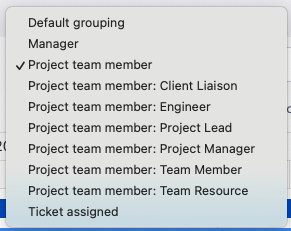
The teams listed here are ConnectWise project teams, not TopLeft teams.
If you use team role functionality in ConnectWise, you should choose a consistent role for the members who do the majority of the work on the project. For example, you might choose "Engineer" as the main role, since someone assigned on the team with the role of "Project Manager" will perform very little of the budgetted hours. Then use this role in ConnectWise consistently, so you can always use it in TopLeft.
Overriding Budget
TopLeft normally takes the budget for a project from the PSA records. However, this is not always convenient because some PSAs do not permit you to specify a particular budget for a project- the budget is only calculated from the sum of the budget of all the project's tickets.
This is inconvenient when the work plan is incomplete or out of date. For example, when you create a new project in your PSA, you may know it has a budget of approximately 30 hours, but there's no way to specify this without creating all the tickets with budgets. Or the scope of a project may change, but the budget cannot be changed until tickets are added or updated.
To let you use Capacity Planning even with incomplete project work plans, TopLeft allows you to override the budget of any project.
To do so, click the project's taskbar in the top section of the planner. A dialog appears with a form to override the budget.
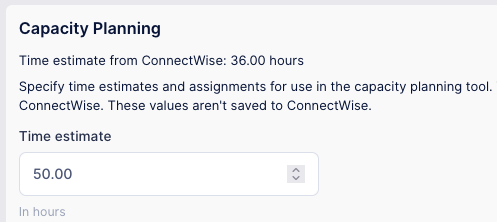
Budget overrides are not saved to the project record in the PSA.
To help identify projects without a budget, or with a budget override, TopLeft changes the color of the project taskbar.
- Light blue: budget is overridden
- Dark blue: using budget from PSA
- Grey: has no budget
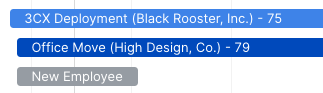
A budget override in Capacity Planning is not reflected elsewhere in TopLeft. For example, a project's card on a Kanban board always shows the PSA budget, not the overridden capacity planning budget.
Distributing Hours Between Members
Budget hours of a project are normally distributed evenly between the members associated with a project. This works well when multiple members share the work roughly evenly.
However, this isn't always realistic. Sometimes one member does the majority of the work on a project, but other members do enough work they need to be associated with the project and its demand on them cannot be ignored.
To handle this case, TopLeft lets you change how hours are distributed to members by assigning a proportion of hours to one or more specific members.
To assign hours, click the project's taskbar in the top section of the planner. A dialog appears with a form to override the hours assignment.
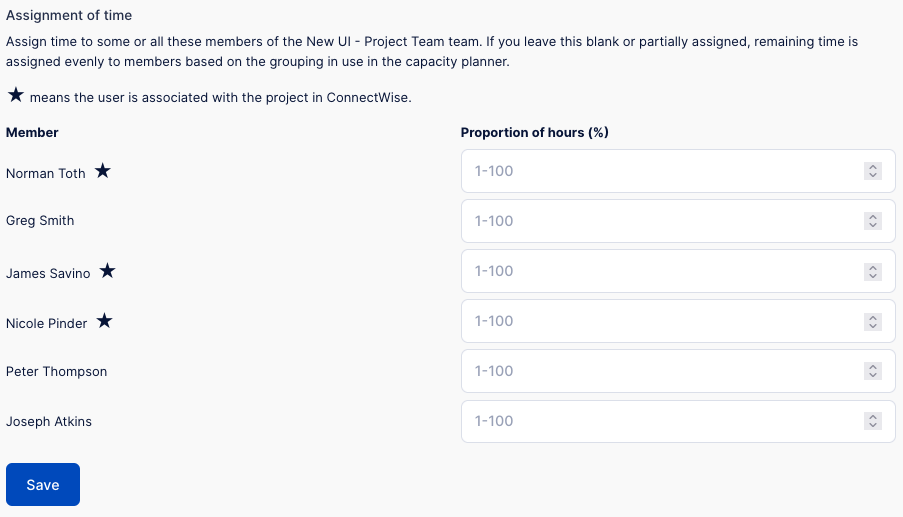
To assign hours to a member, enter the proportion of hours in their field- 1% to 100%. The proportion must not exceed 100%. If the proportion is less than 100%, the remaining proportion is assigned evenly to the other users who are associated with the project.
Hours distribution records are not sent to your PSA.
Balancing Demand and Capacity
When you're satisfied with member/project associations, budgets, and assignment of hours to members, you're finally ready for the fun part: updating project schedules and durations to ensure project demand matches your capacity.
Now consider the bottom section of the planner:

Evaluate the plan as follows:
-
For members where the weekly indicator is short and green, more hours can be assigned. You might add additional projects, move a later project forward in the schedule, or reduce a project duration so it is completed faster.
-
For members where the weekly indicator is tall and green, this indicates a near-full capacity. Do not make any changes.
-
For members where the weekly indicator is tall and red, too many hours are assigned. Remove assigned hours by unassigning projects, moving a project to a later date, or lengthening a project duration.
To change a project date, drag its taskbar left or right. To change a duration, drag the right side. Be aware this will update demand for all members assigned time from the project.
To change an association, click the taskbar to open the editing dialog and change the manager field. To change other associations (ticket assigned or project role), edit the ticket assignments from a ticket View in TopLeft or from the PSA itself.
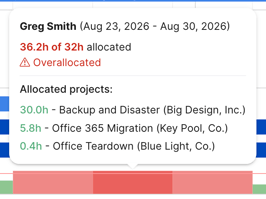
To see which projects contribute to the total demand for a user for a week, hover your mouse over a week indicator. This tooltip is shown:
Applying Changes
You can make changes to project dates and durations in Capacity Planner without immediately updating the project in your PSA. This lets you make as many changes as you need to settle on a realistic project plan.
When you're satisfied with your plan click Save Changes.

A dialog appears that lists the changes you made. You can discard changes to particular projects. To accept the changes and save them to your PSA, click Save Changes. This also updates the start and/or end date of the project tickets by moving them back or forward in the schedule by the same amount their projects are moved.