![White logo TopLeft_240x78.png]](https://help.topleft.team/hs-fs/hubfs/White%20logo%20TopLeft_240x78.png?height=50&name=White%20logo%20TopLeft_240x78.png)
The main visualization in TopLeft is the Kanban board. Kanban boards clearly show the stages that work goes through from beginning to end. Work begins on the left and moves to the right as it progresses until it is complete.
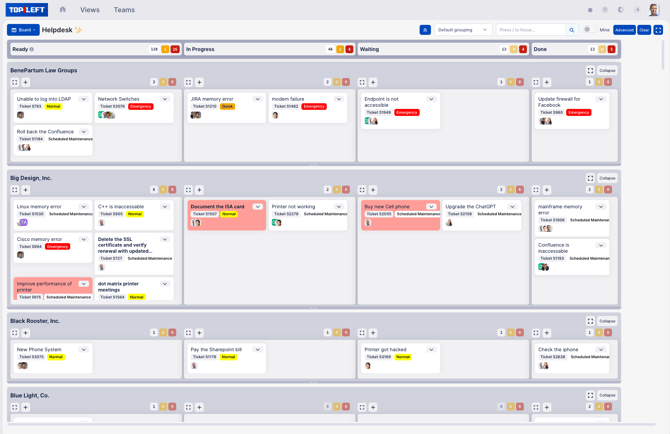
Columns
A column represents a single stage in a team's workflow. The work in that stage is represented by cards. Work is shown in a column when the work item's status is assigned to that column.
The order of the cards in the column represents the order in which the work should be completed- work to be done first is at the top.
You can do the following things within columns:
- Drag cards from one column to another one. This will update the status of the work in your PSA. If there are multiple statuses mapped to the column, a prompt with the list of available statuses will be shown when you drop the card.
- Drag cards within the column to reorder them, indicating which work should be done first. (This is not available if the View's automatic ordering option is enabled.)
- Review counts of total cards, cards with warnings (in orange), and cards with errors (in red).

For example, in this column there are 138 cards total, 3 with warnings, and 16 with errors. (Cards with both warnings and errors are counted as errors only.) - View an administrator's comment about a column by hovering the icon:

- Zoom into the column by clicking the icon:

- Create a new record by clicking the icon:

Cards
Work is represented on a board as a card:
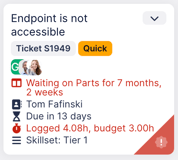
The top section of the card shows the record's title, priority, and assigned members.
The bottom section of the card shows a variety of details about the record. This list is customizeable by administrators.
Click the card to open an editor to change various details on the record.
The appearance of the card can be changed using the Conditional Formatting feature.
If the card has a warning, such as an approaching due date or using most of its budget, it will have an orange ribbon like this:

If it has an error, such as a blown due date, it will have a red ribbon like this:

Click the dropdown to show a menu of options about the card.
Click the record number to copy the number to your clipboard.
Groups
Records can be shown in groups, as in the screenshot at the top of the page, to make them more organized and easy to understand.
You can do the following things within groups:
- Drag cards between groups to update the dragged record. For example, if you drag it from a priority 3 to a priority 2 group, the record is changed to priority 2 in your PSA.
- Drag groups to reorder them.
- Drag the handle on the bottom of the group to resize it.
- Zoom into the group by clicking the icon:
- Click the icon to collapse or expand all groups:
