![White logo TopLeft_240x78.png]](https://help.topleft.team/hs-fs/hubfs/White%20logo%20TopLeft_240x78.png?height=50&name=White%20logo%20TopLeft_240x78.png)
Conditional Formatting works in TopLeft's new UI.
Every team has certain tickets or projects they consider special compared to other work. When you view work on a Kanban board, you may want a visual indicator to highlight those special records.
This is what Conditional Formatting does. You can define a custom list of rules that match certain records in a View and change the visual display of those records on the board.
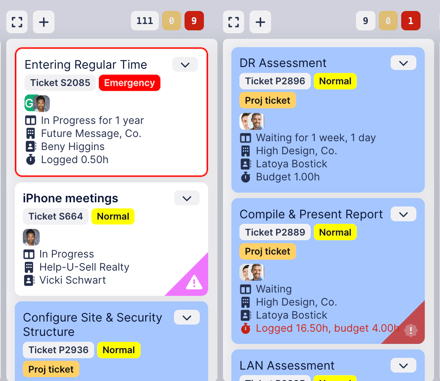
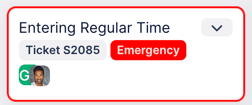
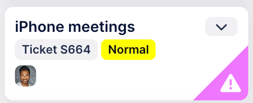
For example, in the image above, project tickets have a blue background, Emergency priority tickets have a red outline, and tickets from Help-U-Sell Realty have a purple "ribbon" in the bottom-right corner with an exclamation point icon.
Conditional Formatting works for all PSAs and all types of Views. It only works on Kanban boards, not Gantt charts or Capacity Planning.
There is no limit to the number of Formats you can define. Formats don't apply automatically to all Views. After creating a Format, you need to associate it with a View before it will take effect.
Setup Walkthrough
Configuring Formats
To use Conditional Formatting, click the gear in the main menu, then Conditional Formatting.
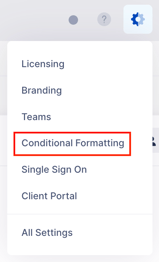
Then click Add Format.
In the form, enter a name for your Format. Select the type of View for the Format, as this defines the options available in the next step. Click Save. A form appears with the rule editor.
Rules
Rules have two parts: a filter definition that matches the special type of work you wish to highlight and properties that change the visual display of matched cards.
Formats can have many Rules, each matching a different set of records and applying different styles.
The Conditions editor is the same as the query builder for Views. You can use boolean logic to match records using a large variety of filters.
The Styles editor lets you change the following visual properties of cards:
- Background color
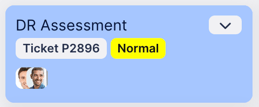
- Left bar color
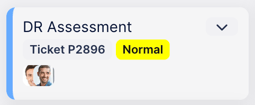
- Outline
- Ribbon
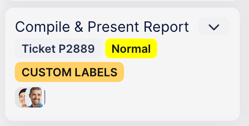
- Label
- Suppress labels: prevent certain labels from being shown on cards. For example, once a card is in the Completed column you may no longer want to show the budget and due date fields, so you could suppress them.
If a record matches more than one rule that changes the same visual property, the top-most matching rule takes precedence for that property.
When you're finished setting up the Format, click Save.
Using Formats in Views
It's not enough to create a Format. You must also associate the Format with a View or a column in a View.
To edit a View, on a visualization page, click the button to the left of the name of the View, then click Edit this View. Then choose the Format to use for this View.
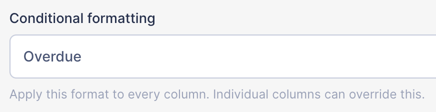
This causes the format to be used for all columns in a View.
Sometimes you want a column to use a different format than the other columns. For example, you might do this to indicate that tickets without a budget set are OK in the first column of your board, but in any other column, it is an error to not set a budget.
You can do this easily on the Workflows tab by changing the formatting associated with a stage.
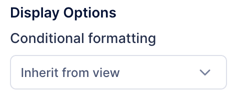
You can select a different Format than specified on the View, or select "Inherit from view" to use the same Format as the view.
When you view the Kanban board, it should now show cards using the selected Conditional Formats.