![White logo TopLeft_240x78.png]](https://help.topleft.team/hs-fs/hubfs/White%20logo%20TopLeft_240x78.png?height=50&name=White%20logo%20TopLeft_240x78.png)
MSPs have a notoriously difficult time planning projects 1-3 or more months into the future. All the project and opportunity data is stuck in your PSA and PSAs have no tools to help with this kind of planning.
TopLeft offers a capacity planning tool to help plan projects with consideration for project assignments and member availability, allowing you to confidently schedule projects and engineers well into the future.
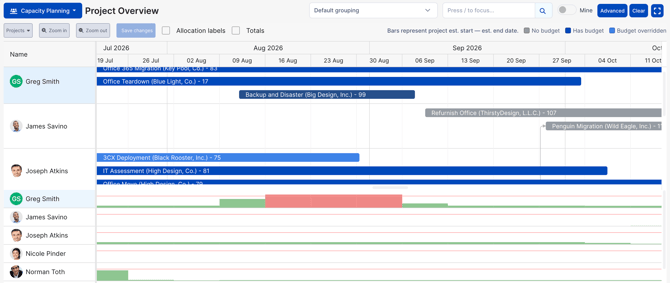
For example, if three projects are planned to start next month and the team as a whole has sufficient capacity, and any team member can work on any project, this is very different than if all three projects can only be done by your most senior engineer. Just because the team as a whole has capacity doesn't mean there is real capacity for your plan.
Capacity planning is based on weeks, not days.
Capacity planning is not a detailed scheduling tool. It is not intended to schedule engineers on particular tickets on particular days or times. For this function, use Kanban boards on a ticket or task View.
Introduction
Watch this video for a brief overview of capacity planning.
How to Match Demand and Capacity
The Capacity Planning tool has two sections.
The top section of the tool shows the projects in the View, grouped by how they are associated with members. They could be associated with members in one of a variety of ways, such as who is the project manager, who is a member of the project team in the PSA, or who is assigned to at least one ticket in the project.
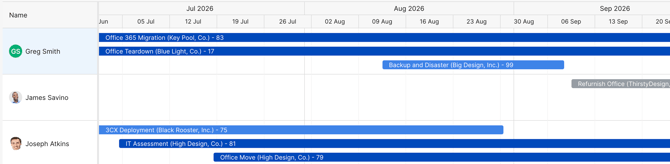
The position and size of the taskbar indicates the scheduled start and end date of the project, similar to a Gantt chart.
The bottom section of the tool is a list of the same members as in the top section, but this list uses a small chart with weekly indicators to show how many hours of work from the associated projects are assigned to the user. The height of each weekly section indicates the assignment for that week. If the assigned work is less than the member's capacity in a week, the box appears in green. If the assigned work is more than the member's capacity, it appears in red.

Given the visual display of capacity vs demand, and the flexible way projects are attributed to members, this tool makes it easy to see if the current project plan is achievable as-is or if changes are necessary to make it realistic.
Opening Capacity Planning
Capacity planning is available for project Views. It is not applicable to tickets or tasks.
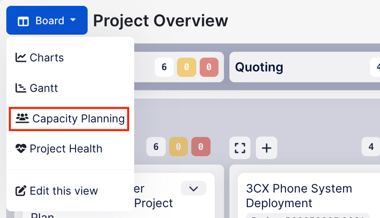
To navigate to the Capacity Planning tool for a project View, click the button to the left of the View name, then click Capacity Planning.
Capacity Planning In Detail
To make full use of Capacity Planning, please refer to these knowledgebase articles:
- Member availability: how to specify the availability of members, by week and by team, so you have an accurate picture of your capacity.
- Project scheduling: how to schedule projects within the capacity of your team
- Planning by phase: to account for projects with varying intensity or members