![White logo TopLeft_240x78.png]](https://help.topleft.team/hs-fs/hubfs/White%20logo%20TopLeft_240x78.png?height=50&name=White%20logo%20TopLeft_240x78.png)
This describes TopLeft's new UI. Read the new UI introduction for instructions to enable it. (Except Halo users, who all use the new UI.)
"Views" in the new UI are similar to "Boards" in the old UI, but much more flexible and powerful.
To see the tickets, projects, and other work from your PSA in TopLeft, create a View. Each team who uses TopLeft will have at least one View. There is no limit to the number of Views you can make in TopLeft.
A View represents a search for tickets, projects, or other records in your PSA data and is presented in a variety of ways:
-
Kanban boards
-
Gantt charts
-
Dashboards with highlights of problematic records and summary of workflow performance
-
Capacity planning tools
Views can be created, edited, and deleted by administrators and team managers in TopLeft.
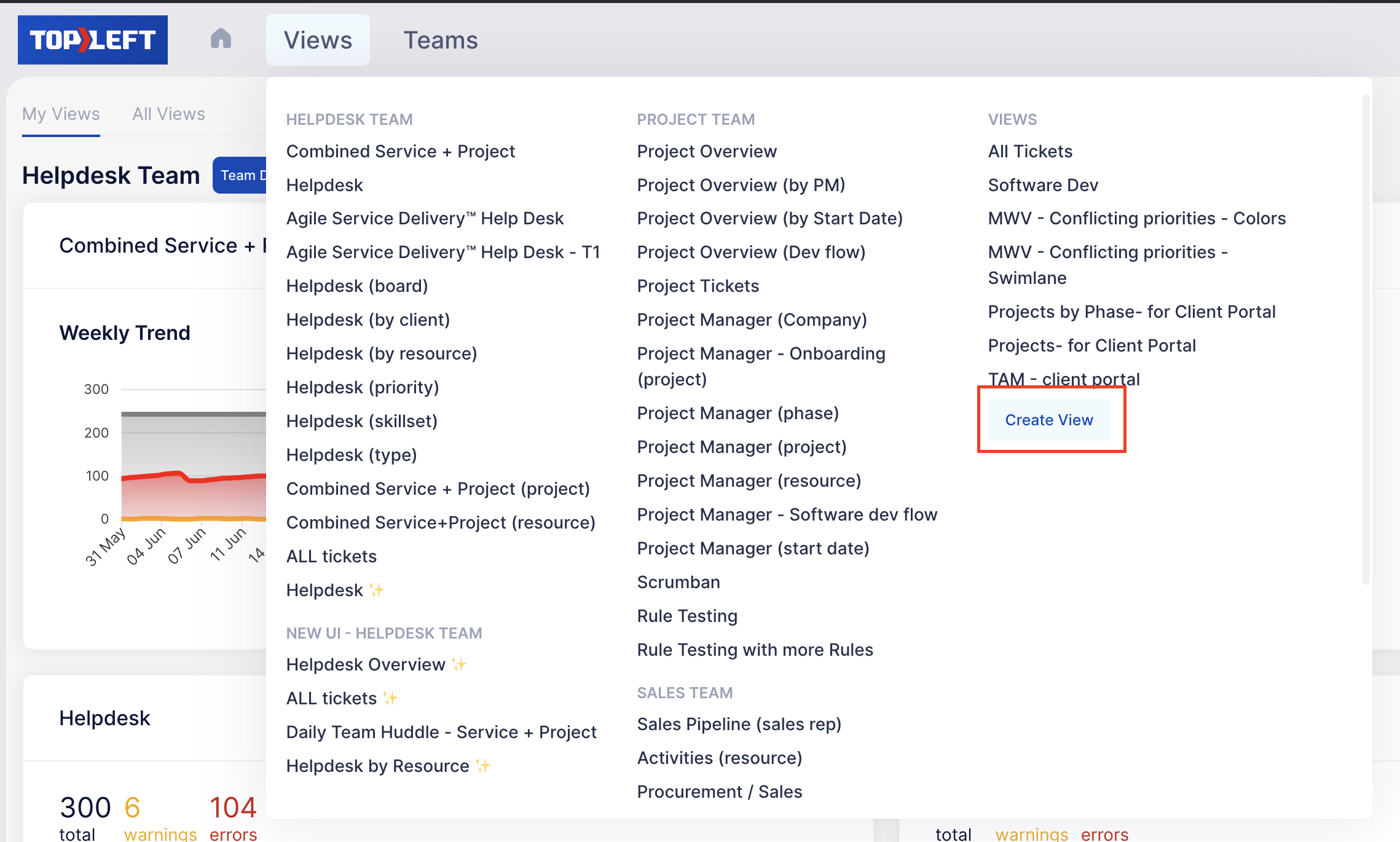
To create a View, in the main menu click Views then click Create View.
Choose the type of record that appears in the View. The available types depend on which PSA you use.
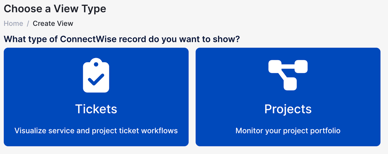
Click the type of View. You are taken to the setup form for the View.
Options for Views
The options for Views are as follows. These appear on the View tab of the editing page:
- Name: identify the purpose of the view- for example, "Huddles", "Project Overview", "Green Pod", or "Helpdesk ticket by member"
- Summary: A short description of the view. It appears on the Kanban board page.
- Default group: how records are grouped together by default. This can be overridden by individual users. For example, group tickets by assigned member or priority.
- Card fields: select the fields that appear on the card on Kanban boards. Balance your user's need for details with minimizing the size of the cards to show more on the screen.
- Priority display: select how to display the record priority on the card on Kanban boards.
- Conditional formatting: select the format to use on Kanban boards. This applies to the whole view, but it can be overridden for different columns.
- Automatic ordering and second ordering: how cards are ordered in columns on Kanban boards. If left blank (the default), cards are ordered manually by dragging them to any position.
- Filters: define which records appear in the view. Read more on the filter knowledgebase page. There is a preview of the matching records to the right of the query builder.
- Team: choose the team this view is for. This is used for record filtering, access control, and organizing views in the main menu.
- Filter to team members: when you specify a team, this option restricts the work to records assigned to a member of the team.
- Show unassigned records: whether or not to show work that isn't assigned to anyone.
- Restrict view to this team: whether or not to permit all users to see this view, or just those members of the chosen team.
- Member association: choose how members are associated with work (for example, by ownership or by assignment/scheduling)
There are additional fields depending on the type of view:
- ConnectWise ticket and project views:
- ConnectWise boards: limit the records to those on the selected projects; leave this field blank to include all boards
- Autotask ticket views:
- Queue: limit the records to those on the selected queues; leave this field blank to include all boards
More Details About Views
Editing Views
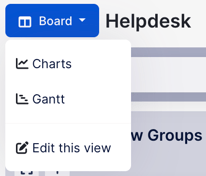
To edit a View, click the button to the left of the name of the View, then click "Edit this view".
Cloning and Deleting Views
Views can be cloned and deleted. When editing a view, click the Actions button at the bottom right corner of the screen, then select the appropriate action.